
To safely update WordPress plugins, treat each update as a small website change that needs preparation and a check afterward. For a nonprofit, that means looking beyond whether the homepage loads: donation and contact forms, event pages, and other essential visitor journeys should still work.
A repeatable process can help staff and volunteers manage updates without rushing. Before you begin, identify who approves updates, who can restore the site, and how to reach your hosting provider or website support contact if something goes wrong.
Before updating: prepare the site and the people
Note how the site is working now
Start with a quick baseline check. Open the homepage and the pages people rely on, such as donation, contact, services, and event pages. Note any existing errors or unusual behavior so you do not mistake an old issue for an update problem. If a form or integration is already unreliable, address that before changing plugins.
Make a simple record of the plugins due for updates and any features they support. For example, a plugin might power a form, donation workflow, calendar, or security feature. Knowing what could be affected helps you choose what to test afterward.
Review the update details and compatibility
In the WordPress dashboard, review the plugin’s update information before installing it. Check the developer’s notes for changes, fixes, or known issues, and look at whether the update is intended to work with your current WordPress setup. If the information is unclear, the plugin has not been updated in a long time, or the update appears to conflict with another tool, pause and ask your website administrator or host for guidance.
WordPress provides steps for reviewing and managing plugin updates in its plugin management documentation. Do not assume that an update is safe simply because it is available. Consider what the plugin does on your site and how difficult it would be to recover if that feature stopped working.
Make a backup you can restore
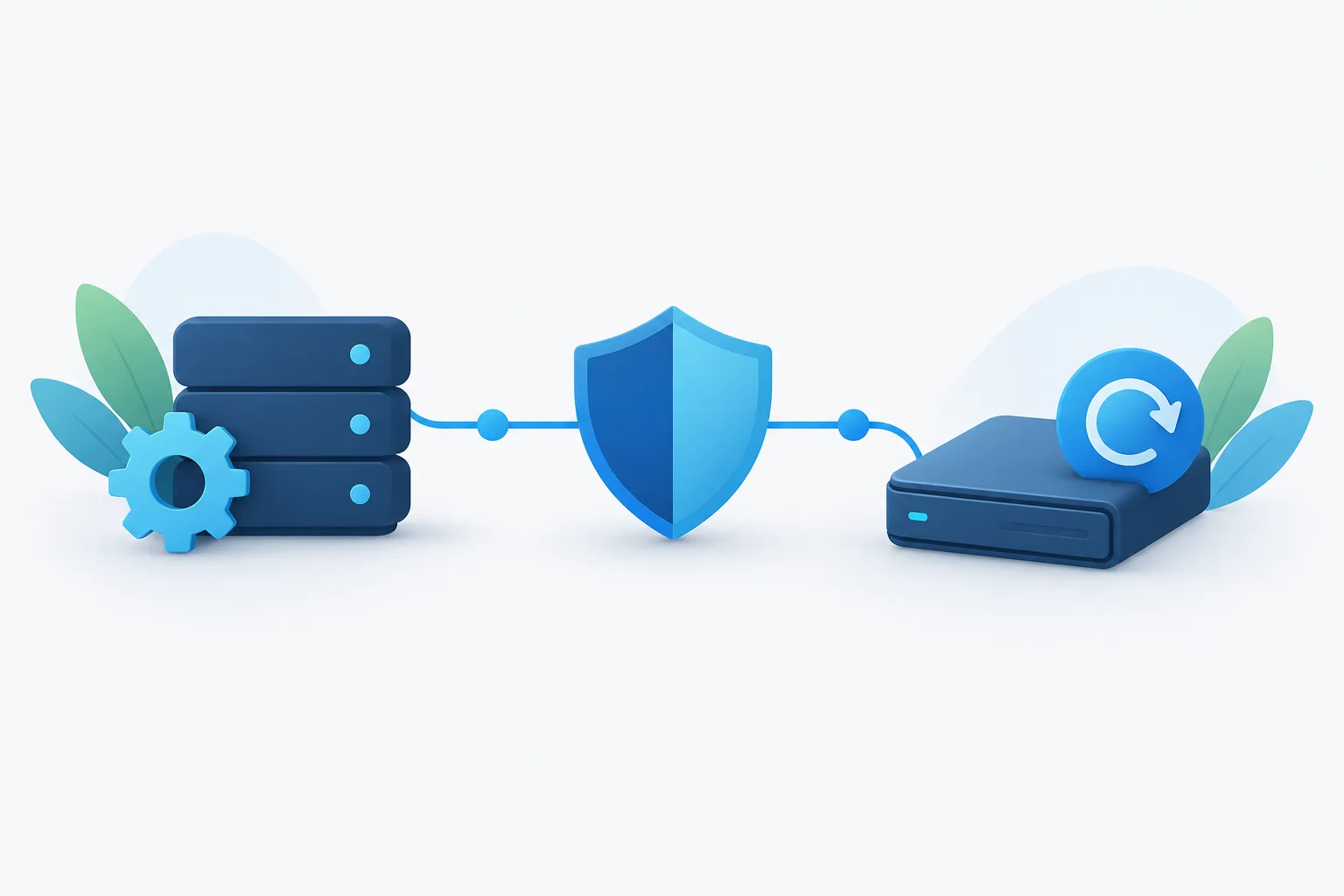
Before updating, make a current backup of both the website files and the database. The files include WordPress core, themes, plugins, and uploaded media; the database contains site content and settings. A backup that covers only one of these may not be enough to restore the site as it was.
Check that the backup completed and that you know where it is stored. More importantly, know who can restore it and how to reach that person or provider. If your team has not confirmed how restoration works, get that process clarified before making changes. For more on planning backups, see our guide to nonprofit data backup solutions.
Test the update away from the live site when possible
A staging site is a separate copy where you can try changes before they affect visitors. If your host or website administrator provides one, use it to apply the plugin update and check important features first. WordPress describes staging environments as a way to test changes separately from a live site in its staging environments guidance.
Take care with copied sites. Restrict access to the staging copy, and check that it will not send real emails, process real donations, or trigger live connections to other services. A test copy should not confuse donors, volunteers, or staff, and it should not overwrite newer information on the live site.
If you do not have staging, use a quieter period when staff can keep an eye on the site, and make sure the backup and recovery contact are ready. Avoid updating just before a major fundraising appeal, event, or other time when the website is especially important to your work.
Use a careful live-update sequence
Confirm that the backup completed and that the person responsible for recovery is available.
Update one plugin at a time. This makes it easier to identify which change may have caused a problem.
After each update, check the homepage and the feature connected to that plugin. If something looks wrong, pause rather than continuing through the remaining updates.
When the first update appears to work, continue with the next plugin and repeat the checks. Avoid combining plugin updates with unrelated website changes, since that can make troubleshooting harder.
When updates are managed through WordPress, follow the available dashboard instructions and avoid closing the process before it finishes. If you are unsure what a message means, record it and ask your website administrator or host rather than trying repeated changes on the live site.
Check the journeys that matter to your nonprofit
After updates, test the website as a visitor would use it. Do not rely only on the homepage or a quick visual scan. Check the pages and actions that support your mission:
Donation and contact forms: Submit a controlled test using the appropriate test mode or a method agreed with your payment provider. Avoid making a real donation just to test a form. Confirm that the expected success message appears and that the right staff inbox receives the notification.
Other forms: Check volunteer, newsletter, registration, or request forms that the organization uses. Confirm that submissions reach the intended destination.
Key pages: Open service, event, and program pages. Check that menus, buttons, links, and embedded content behave as expected.
Accessibility and mobile use: Navigate the essential pages with the tools and devices your visitors commonly use. Look for missing labels, unclear buttons, layout problems, or content that is difficult to reach.
WordPress Site Health can also help identify some configuration or technical issues. It is useful as one part of a review, but it does not replace testing the nonprofit’s own forms and visitor journeys. See the WordPress Site Health documentation for information about the feature.
If an update causes a problem
Pause further updates and note what changed, what visitors see, and when the problem began. If the WordPress dashboard is available, an authorized administrator may be able to deactivate the plugin that was just updated. If the site is inaccessible or the cause is unclear, contact the person responsible for website support or your hosting provider.
Restoring a backup can help, but first consider whether the live site received new submissions or other important information after that backup was made. Restoring an older copy may replace newer site data. Have the responsible administrator or support provider assess the safest recovery option before proceeding.
Once service is restored, test the affected forms and pages again, then record what happened and how it was resolved. That record helps the team make a more informed decision the next time the plugin needs attention.
Make updates a shared, documented task
Small teams do not need a complicated process to reduce confusion. Keep a short handoff note with the person who approves updates, the person who can restore the site, backup location and recovery instructions, and hosting or support contact details. Record completed updates and any follow-up checks. This is especially useful when volunteers or staff share website responsibilities.
Automatic updates may suit plugins that are low-risk and well understood, but they should not be enabled without considering what each plugin controls and how the team will notice a problem. For plugins tied to donations, forms, or other critical functions, decide on an update and testing approach that fits the site and the team’s ability to respond.
Frequently asked questions
Should I back up my WordPress site before updating plugins?
Yes. Make and verify a backup of both the website files and database, and confirm who can restore it before beginning.
How can I test plugin updates before they go live?
Use a staging site when available, then test the features connected to the plugin. Restrict access to the copy and prevent it from sending real messages or triggering live integrations.
How can I check that donation or contact forms still work?
Use an agreed test method, confirm the success message, and verify that the notification reaches the right inbox. Avoid creating a real donation just to test.
Is it safe to enable automatic plugin updates?
It depends on the plugin and your recovery process. Consider the feature it supports, how you will detect a problem, and whether someone can respond if the site is affected.
Keep your nonprofit website dependable
A backup, a deliberate update sequence, and focused checks can help your team catch problems before they disrupt important website journeys. Zevonix website management includes hosting, plugin updates, backups, and 24/7 security protection. If your organization would like help planning website maintenance, call (904) 658-0777 to discuss your needs.