
Nonprofit guest Wi-Fi security is not just a matter of choosing a different network name. Visitors and volunteers need convenient internet access, but their personal devices should not be able to reach staff computers, printers, shared files, or network management tools. The key is to keep guest traffic separate and verify that the separation works.
A thoughtful setup can support events and day-to-day visitors while helping protect donor and constituent information. Work through the steps below with whoever manages your network. If the equipment or settings are unclear, ask a qualified IT professional to review the configuration before sharing access.
Start by deciding who needs access to what
Before changing network settings, list the people and devices that need connectivity. Keep the categories practical:
- Visitors: Usually need internet access for browsing, email, or event-related tasks. They generally do not need access to internal resources.
- Volunteers using personal devices: Treat these devices as untrusted unless your organization has approved a specific, limited need. Personal ownership does not automatically mean a device should join the staff network.
- Managed staff or volunteer devices: If a device is managed by the organization and its user needs particular systems, assign access according to that role and need. Do not grant broad network access just because someone volunteers regularly.
Write down any exceptions, such as a volunteer who needs an approved scheduling tool or a staff member who must print. Identifying the specific resource helps avoid granting more access than necessary. If you are reviewing volunteer technology and access practices, see this guide to IT support for volunteer management systems.
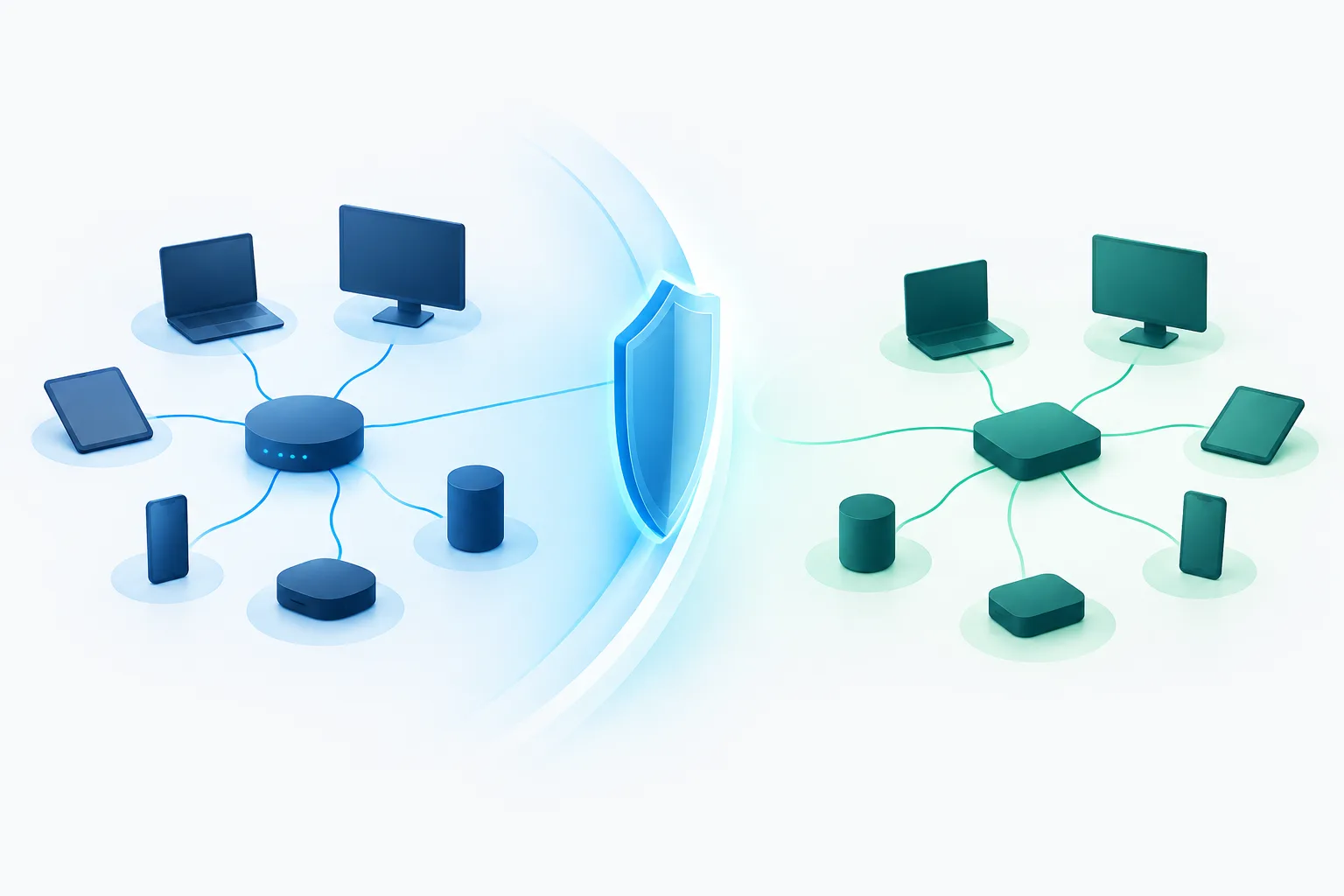
Choose a design that enforces separation
A separate Wi-Fi name, or SSID, can make guest access easy to recognize, but it does not prove that guest devices are isolated. Separation needs to be enforced by the network equipment and its rules.
Depending on the equipment and network, options may include a built-in isolated guest network, a separate VLAN controlled by a firewall, or a separate router configured to keep guest traffic away from internal systems. A dedicated internet connection may be appropriate in some situations, but it is not automatically necessary. The right design depends on the equipment, how the network is used, and whether the separation can be reliably managed.
Check the router and access point documentation for guest-network isolation features. Confirm that the feature blocks access to the organization’s internal network, not merely access between guest devices. Guidance on guest Wi-Fi also recommends considering what guests can reach and how their access is controlled; review the Canadian Centre for Cyber Security’s guest Wi-Fi guidance.
If your equipment cannot enforce separation, do not assume that a second network name solves the problem. Ask an IT professional to assess whether the existing equipment supports a properly isolated guest network or whether a network change is needed.
Configure access rules and basic protections
Once the design is chosen, configure the guest network so it can reach the internet but not internal resources. A technician may need to set or review firewall rules, network segmentation, and access point settings. A useful policy is to allow only the traffic needed for guest connectivity, while blocking access to staff devices, file shares, printers, and equipment management interfaces.
Also consider whether guest devices need to communicate with one another. For most visitor access, they do not. A setting often described as client isolation or wireless isolation can prevent one guest device from reaching another on the same Wi-Fi network. Confirm that this is enabled if your use case does not require guests to share devices or services.
Use current encryption and security settings supported by your equipment. Prefer WPA3 when supported; otherwise use a secure WPA2 setting and avoid outdated encryption options. Set a strong, non-default administrator password for the router and access points, and limit who can change network settings. The Canadian Centre for Cyber Security’s Wi-Fi security guidance offers further considerations for protecting wireless networks.
For the guest password or access code, use a credential that is not shared with the staff network. Avoid posting it where it can be seen beyond the intended audience. For recurring events, decide who is responsible for distributing access and for changing the credential when it has been shared too widely, is no longer appropriate, or may have been exposed. There is no single change schedule that fits every organization; base the decision on how the network is used and who has received the credential.
Test the setup before giving out access
Do not rely only on the router’s settings page or the name displayed on a phone. Test from a device connected to guest Wi-Fi, ideally before an event or opening the network to visitors.
- Confirm internet access. Check that the guest device can connect to the internet and that ordinary guest tasks work.
- Try to reach internal resources. Verify that the device cannot open staff file shares, reach staff computers, connect to internal printers, or access network management pages. Use approved checks and ask your IT provider to help if you are unsure how to test safely.
- Check guest-to-guest isolation. If guests should not connect to one another, confirm that a guest device cannot discover or reach another guest device.
- Review the staff network separately. Make sure staff devices still have the access they need and that guest settings have not disrupted normal work.
- Record the result. Document the network design, who manages settings, how credentials are distributed, and what was tested. Note any limitations that need follow-up.
If a guest device can reach an internal system, stop distributing access until the configuration has been reviewed. Do not try to solve the issue by changing only the Wi-Fi name or password; the network separation and rules need attention.
Keep ownership clear after setup
Guest Wi-Fi is not a set-and-forget task. Assign a staff member or IT provider to manage the equipment, review changes, update credentials when needed, and make sure event volunteers know which network to use. When staff, volunteers, or equipment change, review whether the access still matches the person’s role.
Include the guest network in your broader cybersecurity practices, along with account access, device management, and protection of sensitive information. Zevonix provides IT support designed for nonprofit organizations, including network design and management, cybersecurity, and help desk support. Its experience includes helping nonprofits protect donor and constituent data and keep remote and hybrid teams connected. You can also explore this overview of cybersecurity practices for nonprofits.
Frequently asked questions
Should guest Wi-Fi use a separate router, VLAN, or internet connection?
There is no universal choice. A properly configured guest feature or VLAN with firewall rules may provide separation on existing equipment. A separate router or connection may be suitable in some environments. Choose based on your equipment and verify that internal access is blocked.
Should volunteers use guest Wi-Fi or the staff network?
Volunteers using personal devices should generally use guest Wi-Fi unless they have an approved need for specific organizational resources. Managed devices and approved roles may require different access, but grant only what is needed.
How can we make sure guests cannot reach printers or shared files?
Configure network and firewall rules to block guest access to internal resources, then test from a device on the guest network. Check printers, staff devices, file shares, and management interfaces. Ask an IT professional to help if you cannot confirm the results.
What if our router does not support network isolation?
Do not treat a separate Wi-Fi name as a substitute for isolation. Ask a qualified IT provider to review whether the equipment can be reconfigured, whether additional network equipment is appropriate, or whether the setup should be redesigned.
Make guest access useful without opening the staff network
A secure guest network starts with clear access needs, uses separation enforced by network controls, and is tested before people rely on it. Assign someone to maintain the setup and revisit it when the organization’s needs change. If you would like help reviewing your nonprofit’s network design, contact Zevonix at (904) 658-0777.